External Micro-SD Adapter Upgrade Instructions.

To complete the upgrade, you will need a 20mm carbide hole saw to drill through the aluminum box to mount the remote micro-SD housing.

71Rq7ZAaNLL._SL1500_.jpg

Before starting, it is best to remove the Unity controller to be able to work on it more easily.

First, you will want to locate the drill point on the top side of the box.  

There is a 3d printable bracket that can help with this, or use a ruler/measuring tape to mark the drill point.

locator.jpg

Make sure the box cover plate is removed so that you can see and verify there is clearance inside the box. 

PXL_20250417_180214721.jpg

Next, drill the hole through the aluminum box, being very careful not to allow the bit to run inside the box.

drill.png

Once the hole is made, if needed, you can clean the edges with a deburring tool or razor knife if there are any sharp metal filings left.   

Very Important: Be sure to vacuum or blow out all of the aluminum chips so that they do not damage any of the components inside.

PXL_20250417_180241346.jpg

Next, remove the micro-SD card from the housing on the board.  There are videos on YouTube showing how to do this.  See Here.

Next, install the remote micro-SD housing by passing the extension cable through the outside of the box and running the cable through the back nut.  Tighten the nut on the inside of the box, and you can rotate the housing on the outside to help with this.

inst.png

Now, align the tip end of the extension cable into the SD holder on the control board and close the hinged clamp. This can be a little tricky so be patient. 

inst2.png

Now you can re-install the micro-SD into the new housing. 

PXL_20250417_181006796.jpg

 Lastly, test the unit out by plugging the controller into the main power and Ethernet before re-mounting the control box on the filtration unit, in case you need to re-seat the extension on the board. Once you verify that the controller and new SD adapter are working correctly, you can reinstall the Unity controller onto the filtration unit.

Downloads


Still need help?

Our support team can help with anything this article doesn't cover. Contact Superior Float Tanks support.

Unity Control 3.7.1 Software and Firmware

This is the latest release of the Unity Float Control Software 

Unity Version 3.7.1 

Included and required are matching firmware files 

Float_Ctrl_v3_5_6

You will need to install the new Unity version and then update each tank with the new firmware files. 

https://www.youtube.com/watch?v=XNTyMKhU2_s

Change Log:

This build includes software monitoring of the flow switch in both the open and closed positions and will stop the filtration system if the flow is not reading while the pump is running after 10 seconds. 

Capture6.PNG

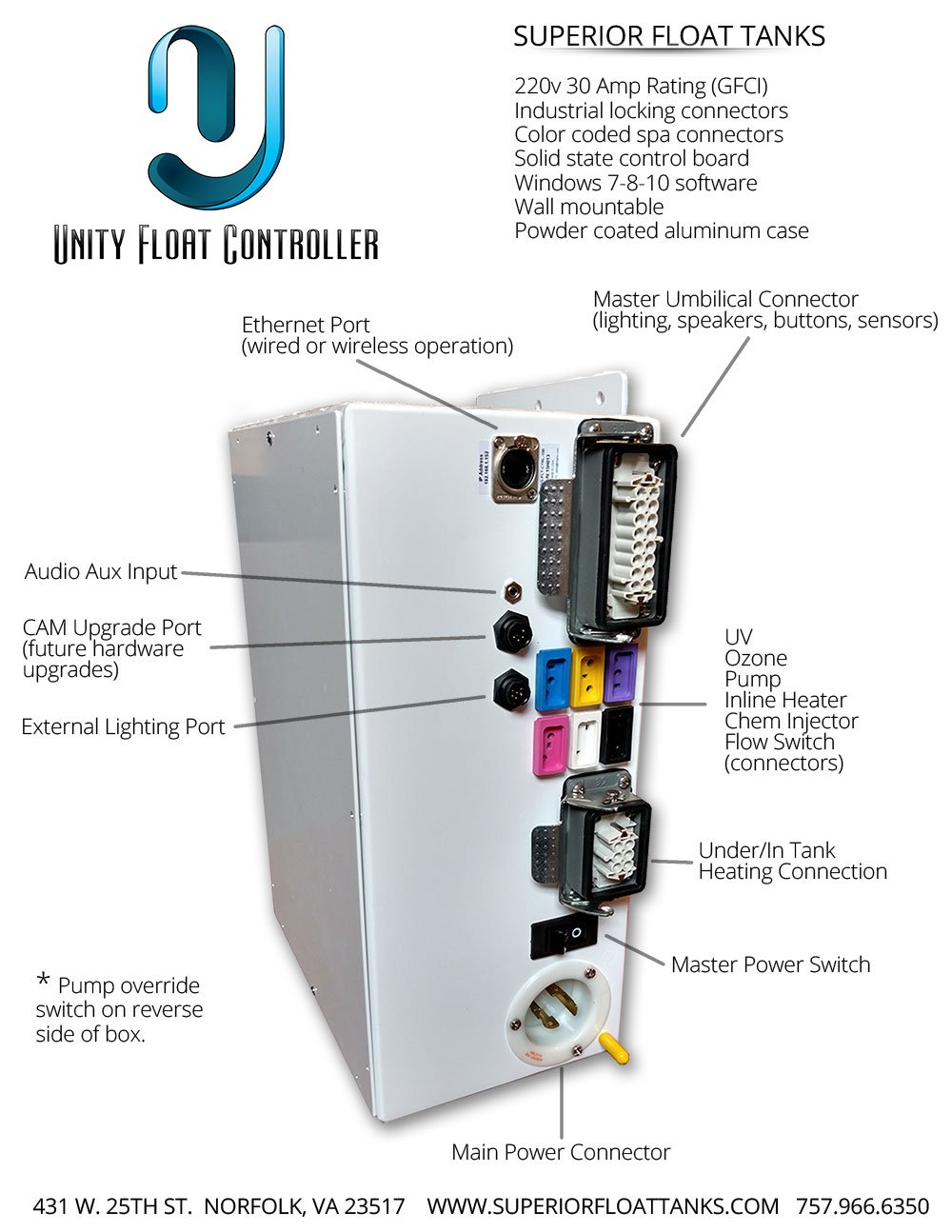
Additionally, if the flow is stuck in the "on" position while the pump is off it will alert and let you know that the flow switch is defective. WARNING : It is very important to not use the pump override switch while the flow switch is stuck in the on position.  This could lead to the UV bulbs overheating their O-rings causing a leak as well as the inline heater staying on and burning up.  The idle heating of the water should be switched over to the in-tank heaters immediately with the "Pump Schedule Enabled" setting to prevent the main heater from turning on in addition to unplugging the main inline heater from the control box until the flow switch is replaced with a new one. 

Capture4.PNG

An alert will be displayed on the software along with a Flow Bypass button to turn the pump back on for a period of 2 hours.  

Capture1.PNG

Capture2.PNG

To reset the alert back to normal just power cycle the control box system. 

Additionally, there is now a "Temperature Offset" setting in the Advanced Config screen to adjust the temperature display and match the actual solution temperature.  This is just a display change and does not change the temperature set points. 

  Capture3.PNG

Lighting profiles have been updated with standard RGB colors as well as brighter options. 

Downloads


Still need help?

Our support team can help with anything this article doesn't cover. Contact Superior Float Tanks support.

Updated Lighting Profiles

These are the updated lighting profiles for download.  

Copy them to the lighting profiles folder inside of the Unity install folder

Downloads


Still need help?

Our support team can help with anything this article doesn't cover. Contact Superior Float Tanks support.

Latest Software Files.

The current software version is 3.6.10 and can be downloaded from the link below. 

Unity_3.6.10_installer.exe

Additionally the "SD CARD CORE FILES" can be downloaded, extracted, and copied to a blank microSD card for replacing the MicroSD card in case of corruption. 

Included are the stock Messages folder MP3 files, enet.cfg file, and the float control .bin and .info files.  

SD_CARD_CORE_FILES

Music track files would need to be copied separately. 

See videos for removing and reinstalling the MicroSD card from the Unity Control box. 

Removing the MicroSD card.

 Reinstalling the MicroSD card.


Still need help?

Our support team can help with anything this article doesn't cover. Contact Superior Float Tanks support.

Generic Intro and Exit Scripts

One of the key features in the Unity Control System is the intro and post-float messages. 

The intro message will play when a session is started. This track will always play at the highest set volume level and acts as a final instruction for new floaters.  Here is the default script but you are free to edit it to your liking. 

Intro: 65 words 25 sec 
 
Welcome, and thank you for choosing "Your Float Center Name " for your floatation experience.  Your session will begin momentarily.  Please take time to adjust the lighting to your preference and to familiarize yourself with the music button. You may adjust the volume or turn it off completely at any time during your float.  Finally, settle into the most comfortable position, relax your body, and clear your mind. Enjoy.
 
The post message plays once the session time has ended and will also play at the highest set level. Additionally, the light in the tank will turn on and cannot be turned off until the end of the filtration cycle.  Here is the default postscript that can also be edited to your liking. 
 
Post: 42 words  15 sec
 
Welcome back.  This now concludes your floatation session with "Your Float Center Name".  Please exit the tank now and shower as the tank will shortly begin its filtration cycle.   We hope your float session has left you feeling revived. 
 
For the voice-over recordings, you can go to www.fiverr.com and select the male or female voice that you feel fits your spa best. 
 
The generic intro, post, and manual start MP3 files are attached below if you need to download a replacement. 

Downloads


Still need help?

Our support team can help with anything this article doesn't cover. Contact Superior Float Tanks support.

Stock MP3 audio pre-installed in the Unity controller.

The following are the links to download the stock MP3 audio files that were pre-installed in the Unity controller. 

DSOTM 

Float_Track 

Focus_Concentration 

Meditation 

Ocean_Waves

Positive_Med 

Additional Audio Tracks can be downloaded here "Additional Float Music". 


Still need help?

Our support team can help with anything this article doesn't cover. Contact Superior Float Tanks support.

Pump Schedule Button

The "Pump Schedule Enabled" button allows for transferring the maintenance heating in the Idle state from the pump and in-line booster heater to the in-tank heaters without the pump running. This is beneficial for commercial locations wanting to keep empty rooms quiet by not running the pumps during the open hours.  For residential installations, this can be used so that the pump does not cut on during the overnight hours.  

Once enabled the setting can be changed or disabled as needed. 

Sched1.jpg


Still need help?

Our support team can help with anything this article doesn't cover. Contact Superior Float Tanks support.